AI video tools can generate new footage, edit recorded material, or combine both in an editable project. Start with the job: cutting an interview, transforming one shot, building an avatar presentation, or coordinating a multi-scene video from a brief.
The entries below include both complete applications and models accessed through another product. Choose a starting workflow from the table, then check the relevant entry and its official documentation. Sora is retained only as a historical availability note.
| Your starting point | Workflow to compare | Examples in this guide |
|---|---|---|
| Interview, podcast, or tutorial footage | Transcript editing and manual clip assembly | ChatCut, Descript |
| A prompt, image, or reference shot | New footage or a visual transformation | Runway, Seedance, Veo, Luma |
| A long recording | Suggested excerpts, reframing, and captions | OpusClip |
| A script or written document | Storyboard, visuals, and narration | Invideo, Pictory |
| A presenter script | Avatar creation, scenes, and localization | HeyGen, Synthesia |
What Makes a Good AI Video Tool?
Use the same short source package and intended output when comparing a shortlist:
- Starting material: recorded footage, a script, a reference image, or a text prompt.
- Reviewable control: the cuts, clips, captions, layers, audio and generated shots you can correct.
- Delivery: the required file, aspect ratio, resolution, subtitle file, or editable handoff.
- Access and cost: the current host, model, plan, region, estimate and revision charges.
An interview cleanup, an avatar presentation, and a generated scene are different tasks. Evaluate each against the job you need, rather than using one generic quality score.
How We Evaluated These Tools
This is a publisher-written workflow guide from ChatCut, which is also included. The entries were reviewed on October 20, 2026 against the linked primary product documentation and provider pages. Provider-described capabilities are distinguished from our suggested use cases and checks.
No same-footage or same-prompt benchmark across these tools was recorded for this guide. It does not establish an overall speed, accuracy, realism, popularity, or value winner. Product access, settings and plans can change; use the linked source and the offer shown in your account for the workflow you intend to run.
Best AI Video Generators in 2026

Use this section when you need new footage or a visual transformation of a source shot. The entries describe generation workflows, not measured quality rankings.
Runway
Runway documents an Agent that plans and generates media and assembles clips, voiceover, and music in a built-in timeline. Its Final Cut tools let you manually trim, split, and arrange generated or uploaded media.
Use and check: Consider it for a generative project that also needs assembly and manual revision. Check the selected model, generation settings, credit estimate, and final timeline.
Seedance 2.0
Seedance 2.0 is a generation model, rather than a complete editing application. ChatCut documents text, frame, and reference-led generation paths, with supported inputs determined by the selected model.
Use and check: Inside ChatCut, configure the job in Video Gen, review the estimate, and inspect the completed asset in My Assets before adding it to the timeline. Check the current model capability matrix rather than assuming one clip limit or dollar rate across every provider.
Higgsfield
Higgsfield presents a library of named camera-motion presets, including dolly, crane, orbit, and zoom movements.
Use and check: Consider it when the shot brief depends on a particular camera move. Test how the move affects your subject, framing, and transitions in the generated result.
Kling AI
Kuaishou describes the Kling AI 3.0 family as supporting multimodal generation and editing, audiovisual output, and storyboard controls. The family includes models with different input and output controls.
Use and check: Check the native product for current model access and settings. Availability inside another editor can differ: ChatCut currently documents that Kling 3.0 is not listed in its manual Video Gen picker.
Google Veo 3
Google’s current Veo page describes Veo 3.1 and video generation with native dialogue, sound effects, and ambience, alongside reference and scene controls.
Use and check: Consider it when a generated shot needs sound as part of the same task. Check the Google product or API you will actually use, its model version, settings, access, and billing. Review speech coherence and audio synchronization; do not assume every Veo surface has the same controls.
Luma Dream Machine
Luma documents a video-modification workflow for style transfer and prompt-based changes to source footage. This changes the visual content of a shot rather than simply cutting spoken words from a recording.
Use and check: Consider it for testing a visual transformation of existing material. Verify the current model and interface, then inspect preservation of motion, framing, faces, and timing. Include any generation retries and manual fixes when assessing turnaround time.
Luma Dream Machine documentation
PikaLabs
Pika’s current site presents a creative platform with Video Studio, color grading, clip extension, and other media tools, plus multiple generation models. Choose the workspace for the kind of shot or adjustment you need.
Use and check: Start with the specific app and model that match the job. Confirm inputs, output settings, and what can be revised after generation; inspect the result rather than assuming a particular visual style or a universal free allowance.
Best AI Video Editors in 2026

For recorded footage, check how the tool changes the edit and how you can correct it. A conversational video model and a full multi-track editor may both be useful, but they expose different controls.
ChatCut
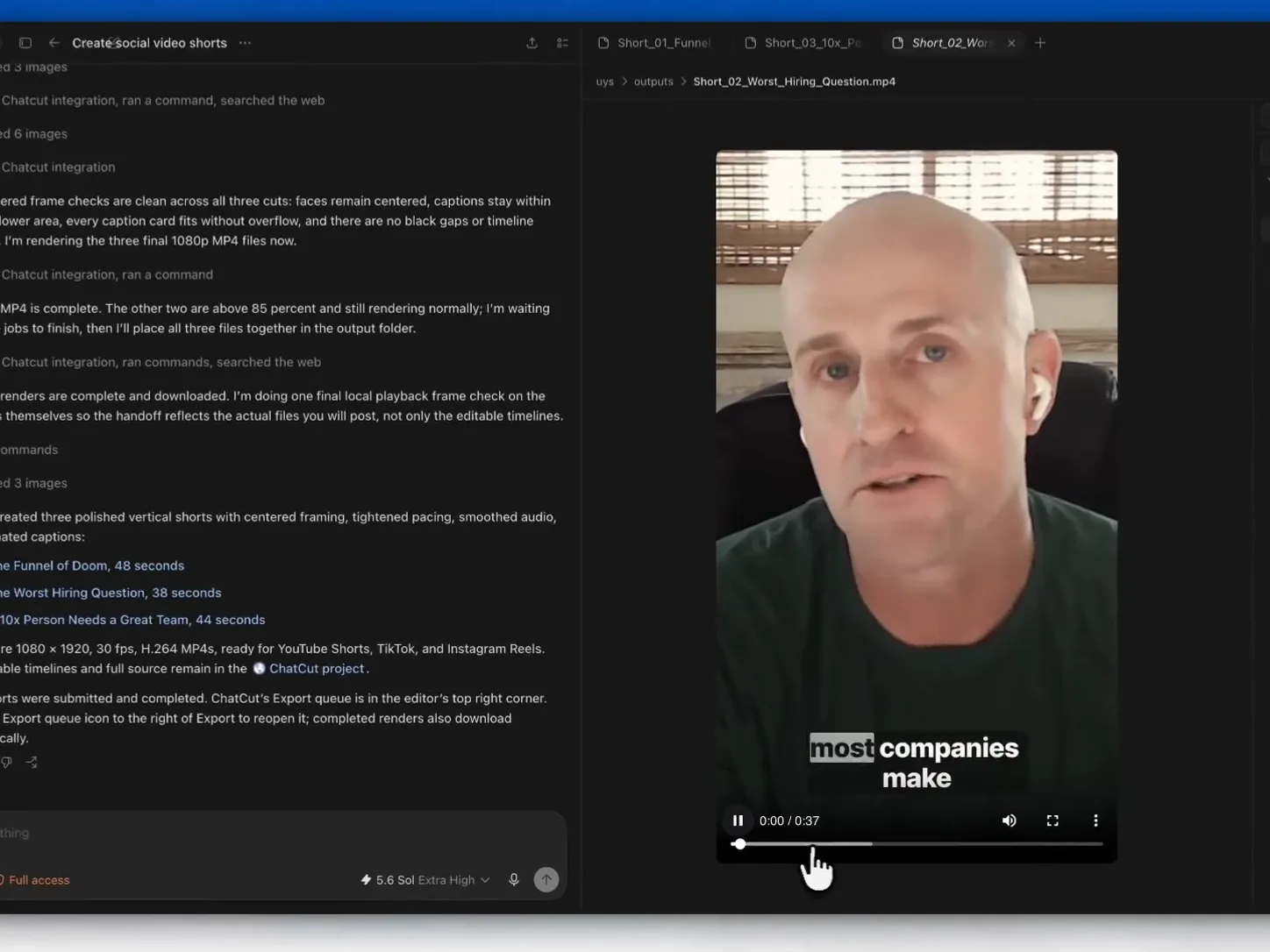
ChatCut’s AI video editor combines an AI Agent, transcript editing, and a multi-track timeline. Ask for an assembly or revision, then inspect the result and adjust the clips yourself. It can edit existing footage, generate supporting media, or combine both in one project. See What is ChatCut?.
- Use natural-language requests for Agent edits and the Transcript panel for speech-led material.
- Move, trim, split, and arrange clips manually on the Timeline, including separate video and audio tracks.
- Generate new footage through Video Gen. Finished clips appear in My Assets and can be dragged onto the timeline; Agent placement depends on the task.
- Continue reviewing framing, caption text, audio, timing, and the final export before publishing.
Pros:
- AI assistance and direct manual controls remain available in the same editable project.
- Imported footage and generated media can share a timeline.
Limits to check:
- Agent instructions still need review; an editing brief does not guarantee the intended result.
- Built-in Agent usage and media generation consume credits differently. Manual timeline editing does not consume credits, while feature access and export allowances can depend on the plan. Read the credits policy.
- Video generation requires Pro. A free plan is available for starting with the editor; check the current Free and Pro guide, pricing, and the offer shown in your account. Starting allowances can change.
Best for: Creators who want AI-assisted edits or generated media while retaining manual control over the resulting timeline, including talking heads, interviews, podcasts, and tutorials.
Descript
Descript documents transcript-based editing: cut or rearrange the text to revise spoken video, with tools for filler-word removal, audio cleanup, captions, and export. Its current page also describes the Underlord AI co-editor.
Use and check: Consider it for dialogue-led work where reading the recording is useful. Check transcript accuracy, the cuts made around speech, scene changes, caption timing, and the current plan. Read the cut in context and listen for clipped words or awkward joins.
Gemini Omni
Google describes Gemini Omni as a model for generating and editing video through successive conversational requests. The official page links to Gemini, Google Flow, and AI Studio.
Use and check: Treat this as a model-driven visual-editing workflow, and check the particular host before choosing it. Conversation-based shot transformation and manual clip assembly are different controls; verify which the chosen application provides. Check access and pricing in the particular application you intend to use.
CapCut
CapCut documents editing and correcting auto-captions on its Web, Desktop, and Mobile surfaces, including revising text and caption segmentation.
Use and check: Consider it for social-video editing and caption work. Check the surface and features you need, then inspect framing, text, audio, export settings, and the offer shown in that app. Confirm that the required features and export settings are included in that offer.
Veed
VEED documents browser-based subtitle generation, text and timing corrections, styling, translation, and subtitle-file or video export paths.
Use and check: Consider it when captions or translated subtitles are central to the workflow. Test names, terminology, timing, line breaks, and the output format. Use a short sample containing your actual speakers and terminology.
OpusClip
OpusClip presents a long-video-to-short-clips workflow with captioning, reframing, and editing controls. It accepts uploaded media and supported source links.
Use and check: Consider it for reviewing candidate excerpts from a longer recording. Check that each selected moment retains context, the crop follows the intended subject, and captions are correct. Review suggested clips against the audience and story you intend to publish.
Best AI Video Creation Suites in 2026
These workflows coordinate several production stages. Check where scripts, generated assets, presenter video and manual revisions remain editable; breadth alone does not establish the best fit.
InVideo AI
Invideo’s AI filmmaking guide describes an agent workflow spanning writing, storyboarding, generation, and shot editing from a creative brief.
Use and check: Consider it when several production stages need to be coordinated from an idea or script. Check the actual workspace, models, assets, revision controls, and charges. Inspect the final cut instead of treating a prompt-to-video draft as automatically publishable.
Pictory
Pictory documents a script-to-video workflow with editable text summaries and storyboards, matched visuals, narration, music, branding, preview, and download.
Use and check: Consider it for turning written material into a narrated sequence. Review the selected sentences, replace visuals that do not support the point, and check narration and timing. A storyboard-based workflow should be assessed on the corrections your project needs.
HeyGen
HeyGen presents avatar-led video creation and a Video Agent that combines presenter footage, motion graphics, overlays, and other media. Its site describes editing generated elements in AI Studio.
Use and check: Consider it when a presenter or avatar is part of the intended format. Check consent and source rights, script accuracy, pronunciation, timing, and editable elements. Preview the complete presenter sequence before export.
Synthesia
Synthesia describes creating a draft with scripts, scenes, and an avatar presenter from a brief or source document, alongside translation and dubbing workflows.
Use and check: Consider it for presenter-led training or business communication. Confirm the required collaboration, delivery, and review workflow in the current plan. Inspect the script, presenter, pronunciation, scenes, and exported file; check the collaboration and delivery requirements with the team that will use it.
Adobe Firefly Video
Adobe documents Firefly video editor as a browser-based beta with a multi-track timeline, conventional clip controls, transcript editing, and generation or reuse of Firefly video assets.
Use and check: Consider it for an Adobe-centered workflow that combines generation and assembly in a browser. Check beta limitations, the current model, credits, and exports. The browser editor provides a separate place to assemble a sequence.
Adobe Firefly Video documentation
Others to Watch
These model families and specialist workflows are worth distinguishing from complete editors. The Sora note explains a retired product rather than recommending new use.
Hailuo AI / MiniMax
MiniMax’s H3 announcement describes multimodal generation using text, images, video, and audio, with native sound. It links the Hailuo product for access.
Use and check: Check the current Hailuo model and the controls offered by its native product or your integration. Test the required reference task and final audiovisual result with representative material.
Hailuo AI / MiniMax documentation
Sora
Sora is a historical entry here, not a current recommendation. OpenAI states that its web and app experiences ended on April 26, 2026, and gives September 24, 2026 as the API discontinuation date.
Use and check: Use OpenAI’s discontinuation guidance for questions about existing content.
PixVerse
PixVerse’s current site presents text- and image-to-video creation, templates, conversational creation, and a node-based canvas workflow.
Use and check: Check the selected model, references, audio, and export requirements directly. Use a representative shot to compare the revision controls and delivered result.
Wan
Alibaba Cloud’s current model guide separates text-to-video, image-to-video, reference generation, and video editing. Its Wan listings cover multiple model families with different inputs and output specifications.
Use and check: Choose an exact model and supported deployment scope before estimating a job. A statement about one Wan version does not apply to every model or host. Compare the required task, input compatibility, access, and actual usage estimate.
Seedance 2.0 Mini
ChatCut lists Seedance 2.0 mini as a generation option alongside other models, with capabilities controlled by the selected model and settings.
Use and check: Treat it as a model option within an editing workflow, not a separate full editor. Check current inputs and the editor’s credit estimate for your intended settings.
Seedance 2.0 Mini documentation
Which AI Video Tool Is Right for You?
Build a shortlist around one representative job, then verify the entire path to delivery:
- Recorded speech: test transcript accuracy, one editorial cut, captions, audio and a manual correction in an editor such as ChatCut or Descript.
- A generated or transformed shot: test the exact input, subject, reference, motion and sound with a supported model or generation workspace.
- Long-to-short repurposing: review selected excerpts, context, framing and captions in a clipping workflow such as OpusClip.
- Written material or an avatar presentation: inspect script choices, selected visuals, presenter delivery and scene revisions in the chosen production platform.
- Final delivery: play the full export outside the editor, and verify the required format, captions, sound and handoff before adopting the workflow.
Keep a record of the source package, prompt, selected model, settings, retries, manual fixes and actual charge. Those observations make a comparison reviewable. A provider’s demonstration or this guide’s suggested use case does not replace testing your own job.
ChatCut can combine recorded material and generated media in the same editable timeline. The primary AI video editor page explains that workflow; Start Your First Edit provides a practical starting point. For model-specific input and output requirements, use the current capability matrix.